Your passwords stay on your Mac. Claude does the rest.

Sésame logs Claude into your accounts, automatically, without ever showing it a password. For sensitive sites, you approve with one click. Everything stays on your Mac, in Apple's Keychain.

Free. No account. No server. macOS 13 or later.

Step 1 of 4

Claude asks

Claude calls the tool sesame_login("edf") with a reason: “get the August invoice.”

Claude
sesame_login("edf")reason: get the August invoice
✓ Automatic: nothing to do
except on a site set to “Ask me”
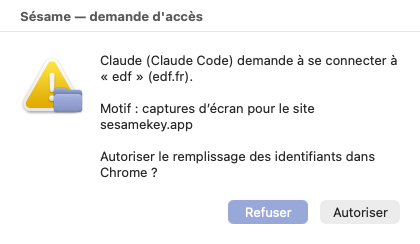
Sésame — access request

Claude wants to log in to edf.

DenyAllow
martine@example.fr
••••••••••
The password never leaves the Mac
✓ done
09:28:35 · edf · login · succeeded

Claude never receives a credential

The principle

Claude never receives your password. It doesn't even have a command to ask for one.

Automatic by default: Sésame logs Claude in without you having to click anything, except on the sites you set to “Ask me.” Either way, no command ever returns a secret: Claude gets one of three possible answers, and nothing else. The password is typed into the page by Sésame, never shown.

What Claude gets

  • done — the form is filled in, the session is open
  • denied — you said no, or access has been cut off
  • failed — the site resisted, without ever saying exactly why
  • The list of sites you've saved, by name
  • The access log, read-only

What Claude never gets

  • Your username
  • Your password, not even masked, not even partial
  • The contents of a field, including in error messages
  • The ability to delete a line from the log
  • The ability to add a site without you

How it works

Three gestures, and never again a password typed in front of Claude.

1

Install Sésame

Download the archive, open it, and double-click “Install Sesame.” The installer introduces itself to Claude on its own and plants a small seed in the menu bar. The first time, macOS asks for a right-click then “Open.”

2

Add a site

Click the seed, “Add a site,” type your username and password once. They go straight into Apple's Keychain, encrypted. Choose its rule: Automatic so you never have to approve again, or Ask me for sensitive sites.

3

Ask Claude

On Automatic, Sésame fills the form in on its own in your browser: nothing to approve. On an “Ask me” site, a window asks for your go-ahead first. Claude carries on with its work.

“Log into EDF and grab the August invoice.”

Screen by screen

What you'll actually see, on your Mac.

Screenshots of Sésame as it really is, not mockups. Three everyday windows, and a seed in the menu bar.

The app is in French for now; the screenshots show it.

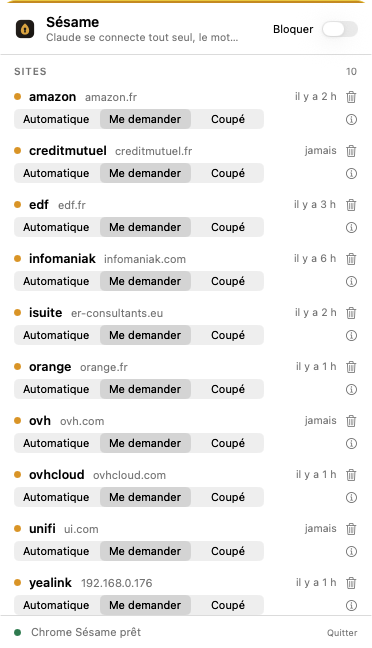
The Sésame panel in the menu bar: list of sites with their rule, log, Block button
1 · The seed in the menu bar. Your sites, each one's rule (automatic, ask me, cut off), the access log, the “Block” button that cuts everything off, and the button to add a site.
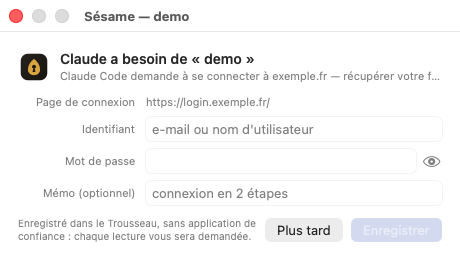
The Sésame window asking for a username and password for a site, with the eye icon to reveal the password
2 · The credentials window. When Claude needs a site Sésame doesn't know yet, this window opens: username, password with an eye icon to check it, “Later” or “Save.” The password goes straight into the Keychain. Claude only learns that the site is now available.
The Sésame access request: who's asking, which site, why, Deny and Allow buttons
3 · The access request, on an “Ask me” site. Who's asking, which site, why. “Deny” is the default button. The Apple Keychain itself asks nothing for a site saved since 0.5.1; for an older one, just once, during sesame migrate-keychain.
The Sésame banner at the top of the page waiting for a code received by email or SMS
4 · The code is you. If the site sends a code by SMS, email, or an authenticator app, a banner appears at the top of the page and Sésame waits. You type the code, the site accepts it, Claude carries on.

The browser

Why a separate Chrome window, and how to skip it.

Since version 136, Chrome refuses to let any program drive your everyday profile. It's a protection against malware, and Sésame respects it. Here's what that changes, and what we did so it barely shows.

Today: a dedicated Sésame Chrome, out of the way

  • Sésame launches its own Chrome with its own profile, minimized in the Dock. There's nothing for you to open.
  • It stays in the background during login and only expands if a site is waiting for a code from you.
  • Your sessions stay open there: once you're logged into EDF, Sésame isn't needed again until it expires.
  • Nothing else is installed there: no third-party extension can watch what Sésame types.

Available: the extension, in your everyday Chrome

  • The Sésame extension (beta) fills the form directly in your everyday Chrome. No more separate window.
  • Install it from the seed: Sésame menu → “Browser” → “Install…” Sésame opens chrome://extensions and turns on developer mode for you.
  • Load the extension/ folder, copy the ID shown under its name, paste it into Sésame, and click “Link.”
  • It receives credentials through Chrome's native messaging channel, a local pipe between the extension and Sésame. Nothing goes over the network, the extension stores nothing. Sésame prefers it as soon as it responds, and falls back to the separate Chrome otherwise.
  • An honest limit: in your everyday Chrome, another extension with access to the page could in theory watch the keystrokes, just as it could watch you typing yourself. The dedicated Chrome doesn't have that exposure. Your choice.

Security

Built the way Apple would build it: local, encrypted, under your control.

You choose: automatic, or approval every time for sensitive sites. And a Block button that cuts everything off, any time.

  • Apple's Keychain, not a homemade vault

    Sésame entrusts your secrets to the macOS Keychain, the same one that holds your Safari passwords and Wi-Fi keys. Apple's encryption, protected by your session and, on recent Macs, by the security chip.

  • Nothing leaves your Mac

    No cloud, no Sésame account, no hidden sync. The secret only ever travels between the Keychain and your browser, on the same machine.

  • You choose, site by site

    Automatic: Claude logs in without asking you anything. Ask me: every login goes through a Sésame window that states who, which site, why. You change your mind in one click, site by site.

  • A log Claude can't erase

    Every request is recorded: who, when, which site, allowed or denied, succeeded or not. Claude can read it to report back to you. It cannot touch it.

  • A Block button

    In the menu bar, it cuts off every connection at once, whatever the site, for as long as you want.

Compatibility

Built for Claude. Open to others.

Sésame speaks MCP, the open standard that assistants use to call tools. Claude understands it today. Others will follow, without changing anything about your passwords.

Claude Desktop and Cowork Claude Code Claude in Chrome Chrome extension (beta): your everyday Chrome, no separate window Cursor, VS Code, Windsurf · compatible, untested Codex CLI, Gemini CLI · compatible, untested ChatGPT · via remote connector, untested

Control

Site by site. Access by access.

Your sites

SiteRuleLast access
OVH
ovh.com
automaticyesterday, 6:02 PM
EDF
particulier.edf.fr
ask metoday, 9:28 AM
Taxes
impots.gouv.fr
access cut off12 days ago

The log

09:28:32 edf request Claude Code allowed approved by you 09:28:35 edf login Claude Code succeeded dashboard opened 18:02:10 ovh login Cowork succeeded automatic rule 11:40:03 taxes request Cowork denied access cut off 11:39:51 taxes request Cowork denied you said no

Every line says who asked, for which site, and how you answered. Nothing is ever deleted from it.

FAQ

What we're asked the most.

Does Sésame send my passwords anywhere?

No. They live in Apple's Keychain on your Mac, and only leave it to be typed into your browser, on the same machine. Sésame has no server, no account, no analytics.

Could Claude cheat its way to a password?

It has no command for that. Sésame only offers it “log in,” “list sites,” “read the log.” Even pushing hard, the only thing it can get back is “done,” “denied,” or “failed.”

Why a second Chrome window?

Since version 136, Chrome refuses to let a program drive your everyday profile. So by default Sésame uses a separate-profile Chrome, which it launches itself, minimized, and only expands for a code. You can skip it with the Chrome extension (beta): it fills the form directly in your everyday Chrome, no second window.

Why does my Mac ask for my login password?

For a site saved since 0.5.1, it doesn't: Sésame's Keychain helper creates and re-reads the item itself, silently, from the very first access. For an older site, one command settles it for good: sesame migrate-keychain — one Keychain window per site, you click “Always Allow,” and it's done.

How do I install the Chrome extension?

From the seed in the menu bar: “Browser,” then “Install…” Sésame opens chrome://extensions and turns on developer mode for you; load the extension/ folder, copy the ID shown under its name, paste it into Sésame, and click “Link.” Sésame confirms once the connection is active. It's a beta: in your everyday Chrome, another extension with access to the page could in theory watch the keystrokes, just as it could watch you typing yourself.

What about codes sent by SMS or an authenticator app?

They stay in your hands. When a site asks for one, Sésame lets you know, shows “Waiting for your code” at the top of the page, and waits while you type it. The login only resumes once the code is accepted. That's by design: the second factor is you.

What happens if I lose my Mac?

The secrets live in the Keychain, protected by your macOS session and disk encryption. Without your login password, they're unreadable. Still, change your passwords, as you would for any lost computer.

How much does it cost?

Nothing. Sésame is free and its code is open: anyone can check that it does exactly what's written here.
Download

Open Sésame.

One app, one drag-and-drop, and Claude logs in for you. Without ever knowing how.

Version0.5.1 · prototype, zip archive with the menu bar app
RequirementsmacOS 13 or later, Google Chrome, Node.js 20 or later
PriceFree, open source